
Which app made that beep? Tracing system sounds on macOS
A user asked a simple question. Core Audio gave the wrong answer, and the right one was hiding in a log that's only there if you're watching live.
By Zernonia · November 10, 2026 · 7 min read
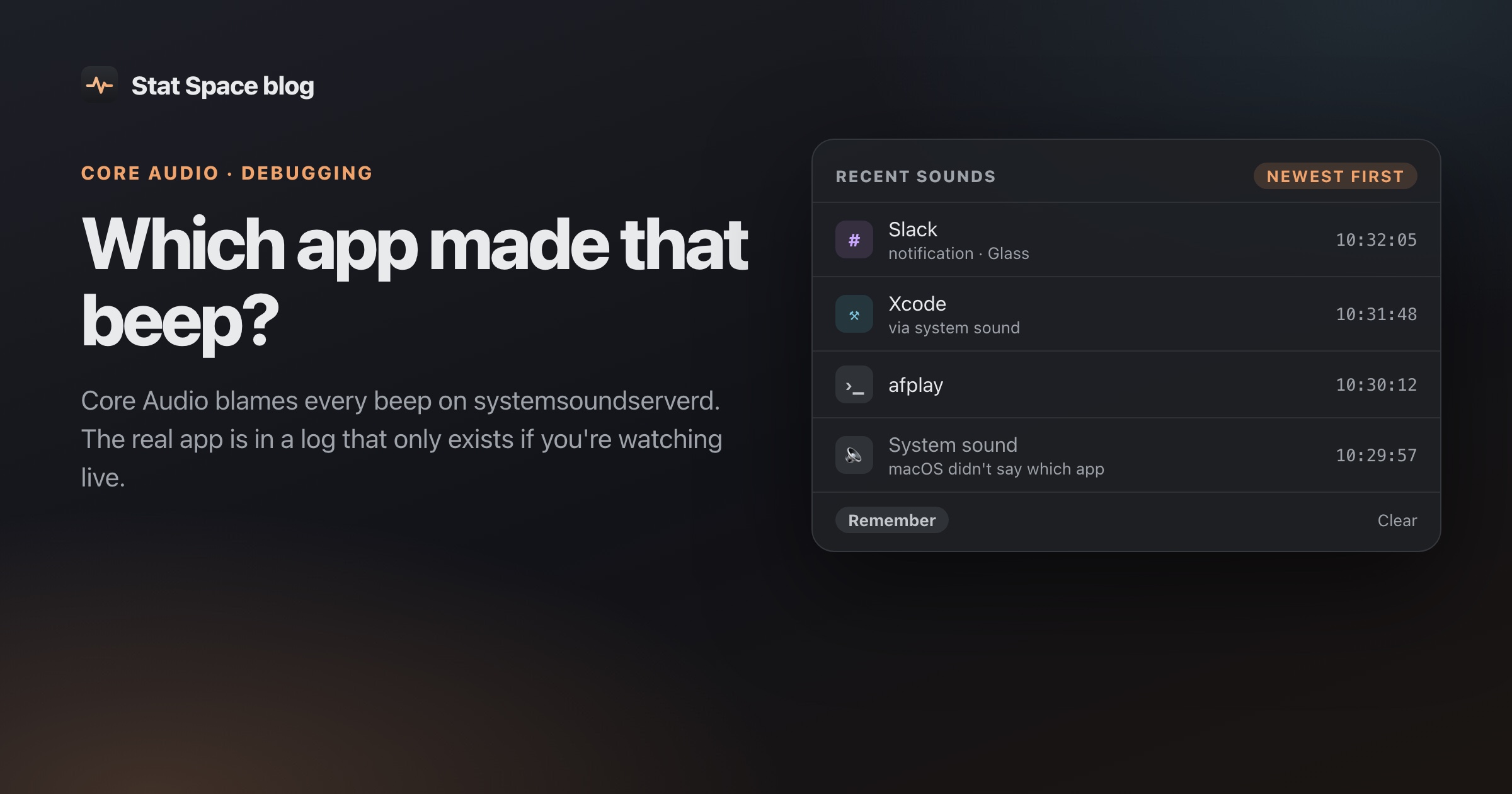
“Which app made that last beep?” came in as a feature request for Stat Space, and I assumed it would take an afternoon. The Volume tab already knew which apps were playing audio, so I’d just keep a short list of who started playing and when.
Then I triggered a beep and Core Audio told me, with complete confidence, that it came from systemsoundserverd. It always does. This post is the investigation that followed, what actually works, and what I left out.
The obvious approach, and why it’s wrong
Core Audio exposes every audio client as a process object (kAudioHardwarePropertyProcessObjectList), each with a PID, a bundle id and whether it’s outputting right now. No permission needed. Watch those for output starting and you have a “who played a sound” log.
I wrote a small spike, spike-sounds, that registers listeners on the process list and on each process object, then logs PID, bundle id, executable path and the frontmost app whenever output starts or stops. Then I triggered every kind of sound I could think of from another shell. On macOS 26.6.2 on Apple Silicon, this is what Core Audio reported:
| What made the sound | Core Audio says it was |
|---|---|
NSBeep(), NSSound.beep() | systemsoundserverd |
AudioServicesPlayAlertSound, AudioServicesPlaySystemSound | systemsoundserverd |
osascript -e beep | systemsoundserverd |
A notification with a sound (display notification … sound name "Glass") | systemsoundserverd |
afplay, NSSound(named:).play() | The app itself |
Anything that plays its own audio is attributed correctly. But the sounds people actually ask about, the alert beep and the notification ping, all go through macOS’s system sound server, and Core Audio sees only the server. For notifications it’s worse than it looks: even systemsoundserverd’s client is NotificationCenter, not the app that posted the notification.
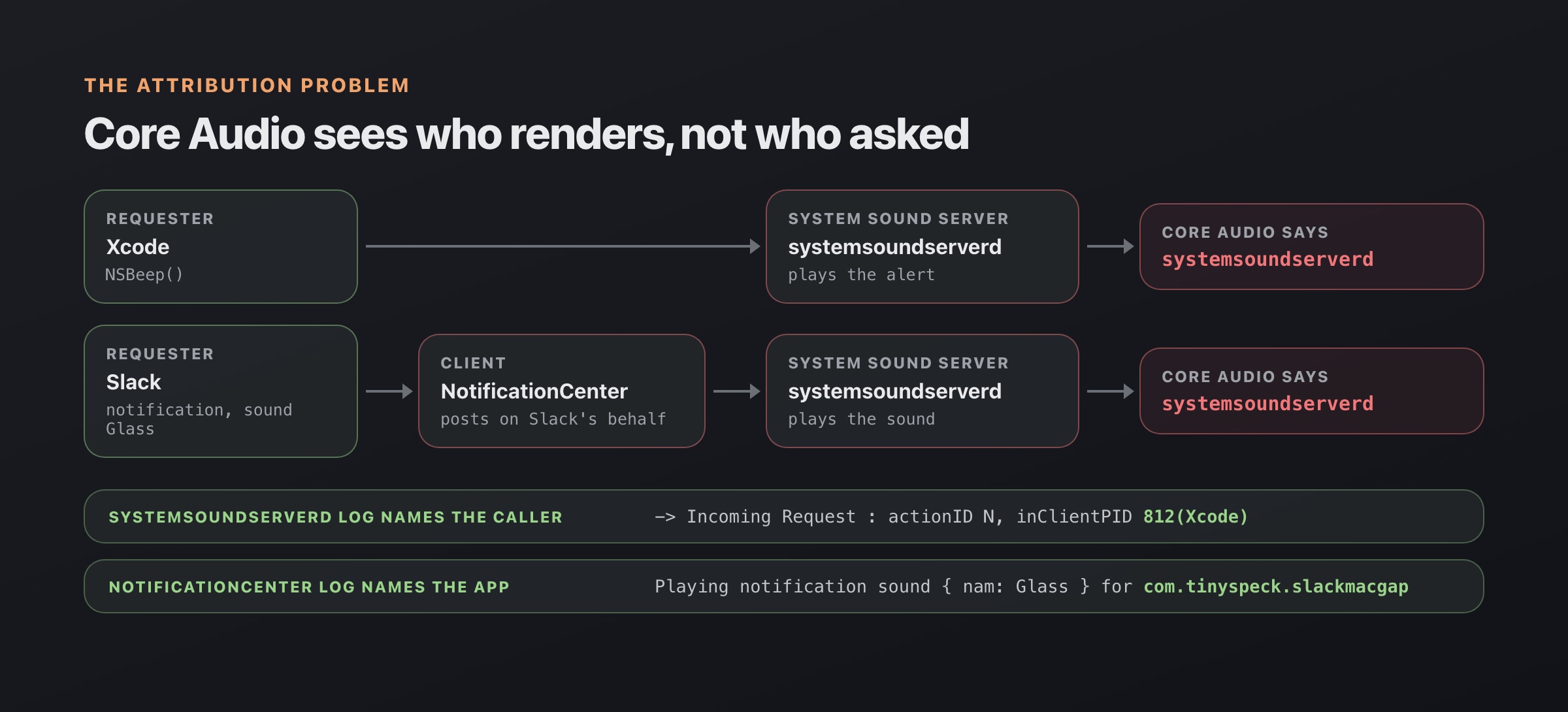
Core Audio only sees the process rendering the sound; the logs name who asked for it.
There was also noise. corespeechd (bundle id com.apple.CoreSpeech) started output alongside every single sound on the device: beeps, afplay, notifications. Left alone, it would appear next to every entry as “Siri”, so it’s ignored.
A listener that never fires
The spike turned up a second problem, one that was already a bug in the shipped app. The natural property to watch on a process object is kAudioProcessPropertyIsRunningOutput. On macOS 26, listeners on it (and on kAudioProcessPropertyIsRunningInput) never fire. Only kAudioProcessPropertyIsRunning notifies:
// IsRunningOutput / IsRunningInput don't notify; IsRunning does.
AudioObjectAddPropertyListenerBlock(obj, &isRunningAddr, queue) { _, _ in
    let out: UInt32 = get(obj, kAudioProcessPropertyIsRunningOutput) ?? 0
    // output started if `out != 0` and it was 0 before
}
The Volume tab had been listening to the output property only, so its Playing state silently didn’t update until the process list itself changed. That got fixed in the same change.
Looking for the real requester
So where does the real caller live? I considered correlating with the frontmost app, and the spike logged it for exactly that reason. It wasn’t needed, and it would be wrong anyway: the whole point is catching the background app that pinged while you were typing somewhere else.
The answer was in the unified log. systemsoundserverd logs every request it accepts, at Default level, readable without root:
-> Incoming Request : actionID N, inClientPID <pid>(<name>), …That’s the caller’s PID and process name. For notification sounds the client is NotificationCenter, but NotificationCenter logs its own line (subsystem com.apple.unc, category sound) naming the app:
Playing notification sound { nam: Glass } for <bundle id>Two details make this usable:
- Timing. Both lines arrive in
log streamabout 5 to 10 ms before Core Audio reports systemsoundserverd’s output starting. Close enough to pair them reliably. - Persistence. They don’t come back from
log show. These messages aren’t persisted, so you can’t look up “who beeped two minutes ago” after the fact. It has to be a live stream, running before the sound plays.
One more quirk: the process name in the request line is truncated by the kernel to 16 characters, so NotificationCenter shows up as NotificationCent. The code checks for that prefix.
What a live log stream costs
Stat Space has a strict idle budget (under 0.3% CPU and 25 MB at 1-second sampling, popover closed), so “keep a log process running” needed numbers before it went anywhere near the app.
The trick is that log stream --predicate filters inside logd, not in the child process. The child does nothing until a matching message shows up. Measured over 30 seconds, the filtered child used 0.01 s of CPU, essentially zero, and 3 to 5 MB of memory in its own process. The predicate is narrow:
(process == "systemsoundserverd" AND eventMessage CONTAINS "Incoming Request") OR
(process == "NotificationCenter" AND category == "sound"
  AND eventMessage BEGINSWITH "Playing notification sound")
And it runs as:
/usr/bin/log stream --style ndjson --timeout 10m --predicate '<the predicate above>'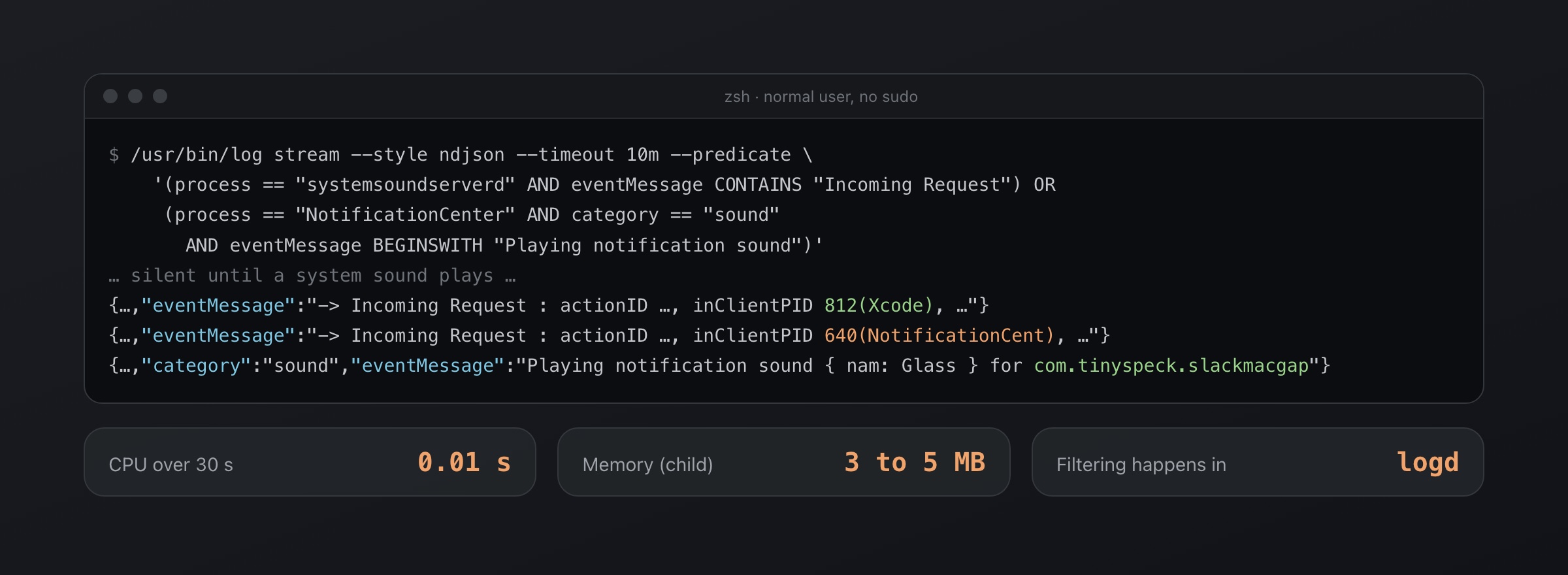
The filtered stream stays silent until a system sound plays, because logd does the filtering.
NDJSON gives one JSON object per line, so parsing is a matter of reading eventMessage and pulling out the PID or bundle id. The --timeout 10m is a safety net: the app restarts the stream when it times out, so if Stat Space ever crashes, the orphaned log process ends on its own within ten minutes instead of living forever. If log can’t start, or exits quickly three times in a row, the feature degrades instead of failing: those sounds are listed as “System sound” with no app.
Putting the two sources together
The final design uses two event sources and matches them:
- Core Audio listeners: the process list, plus
kAudioProcessPropertyIsRunningon each process object. No polling. An app that plays its own audio is recorded directly as itself. - The log stream: when systemsoundserverd starts output, the matching request line supplies the real app. For a notification, NotificationCenter’s line supplies the app and the sound name.
Events are matched if they land within 1.5 seconds of each other, in either order. The log usually wins the race by a few milliseconds, but it isn’t guaranteed. If Core Audio fires first, a placeholder “System sound” row goes in and is filled in when the hint arrives. If no hint arrives at all, the placeholder stays. Requests that Stat Space made itself are recognized by PID and dropped.
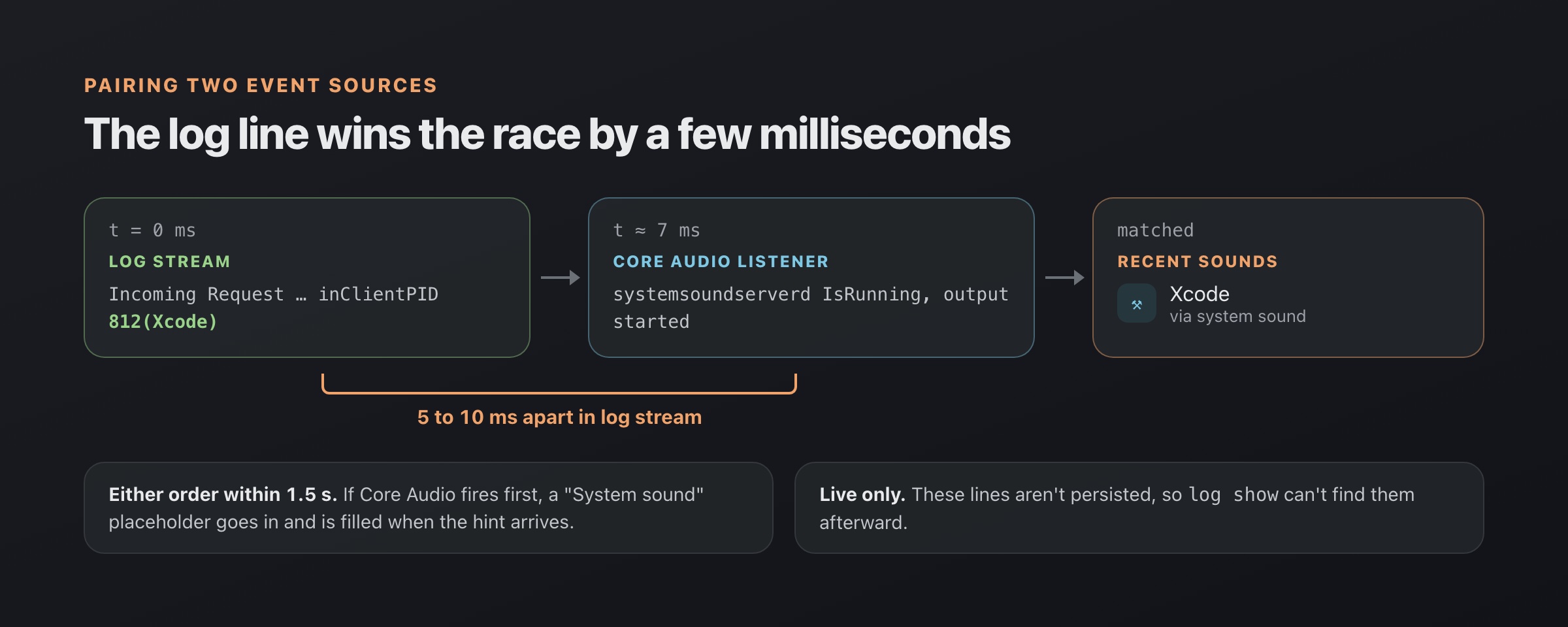
The log hint usually arrives 5 to 10 ms before Core Audio reports output, and the two are paired within 1.5 seconds.
The result goes into a fixed 10-slot ring buffer, newest first, with rows like “Slack · notification · Glass” or “Xcode · via system sound”. Repeated starts from the same app within 2 seconds (several helper processes, a stutter) collapse into one entry, and helpers are grouped into their parent app the same way the volume mixer groups them.
As for when it runs: only while the Volume tab is open, or with the popover closed if you turn on the section’s “Remember” chip, which is off by default. No root, no private framework, no polling.
What I left out
Two cases aren’t covered, and I decided that was fine:
- Apps that already have input running. A call app with the microphone open that starts playing output doesn’t flip
IsRunning, because the process was already running. No listener fires, so its sounds aren’t listed. The app’s own call audio is the main thing you’d miss, and you already know where that’s coming from. - Other users’ sessions. Sounds from a different macOS user logged in at the same time aren’t seen.
And one thing I explicitly chose not to build: frontmost-app guessing as a fallback. A wrong answer delivered confidently is worse than “System sound”.
What I’d tell someone trying this
- Core Audio’s process objects tell you who is rendering audio, not who asked for it. For anything routed through a system daemon, those are different processes.
- When an Apple daemon does work on someone’s behalf, check its Default-level log lines. They often name the client, and you don’t need root to read them.
log showandlog streamdon’t see the same things. If a message isn’t persisted, only a live stream will catch it.- A filtered
log streamis far cheaper than it sounds, because the filtering happens inlogd. - Spike first. The
IsRunningOutputbug only surfaced because the spike logged every listener callback.
Recent sounds now sits at the bottom of the Volume tab in Stat Space, next to the per-app volume sliders (which have their own how-to). Stat Space is a lean menu bar system monitor for Apple Silicon, free with a one-time Pro upgrade, at statspace.app.
Questions
How do I find which app played a sound on my Mac?
macOS doesn't show this. Core Audio attributes alert and notification sounds to systemsoundserverd, but systemsoundserverd's own log names the requesting process, and NotificationCenter's log names the app whose notification played.
Does finding the app behind a system sound need root?
No. The relevant log lines are at Default level and log stream can read them as a normal user. They aren't persisted, though, so log show won't find them afterward.
Know what your Mac is doing, without adding to it.
Free, no account. Pro is $9.99 once for the first 100 buyers.