Per-app volume on macOS without an audio driver
Core Audio process taps (macOS 14.2+) can turn one app down without installing a virtual sound card. Here's how they work, and what I learned shipping them.
By Zernonia · November 10, 2026 · 9 min read
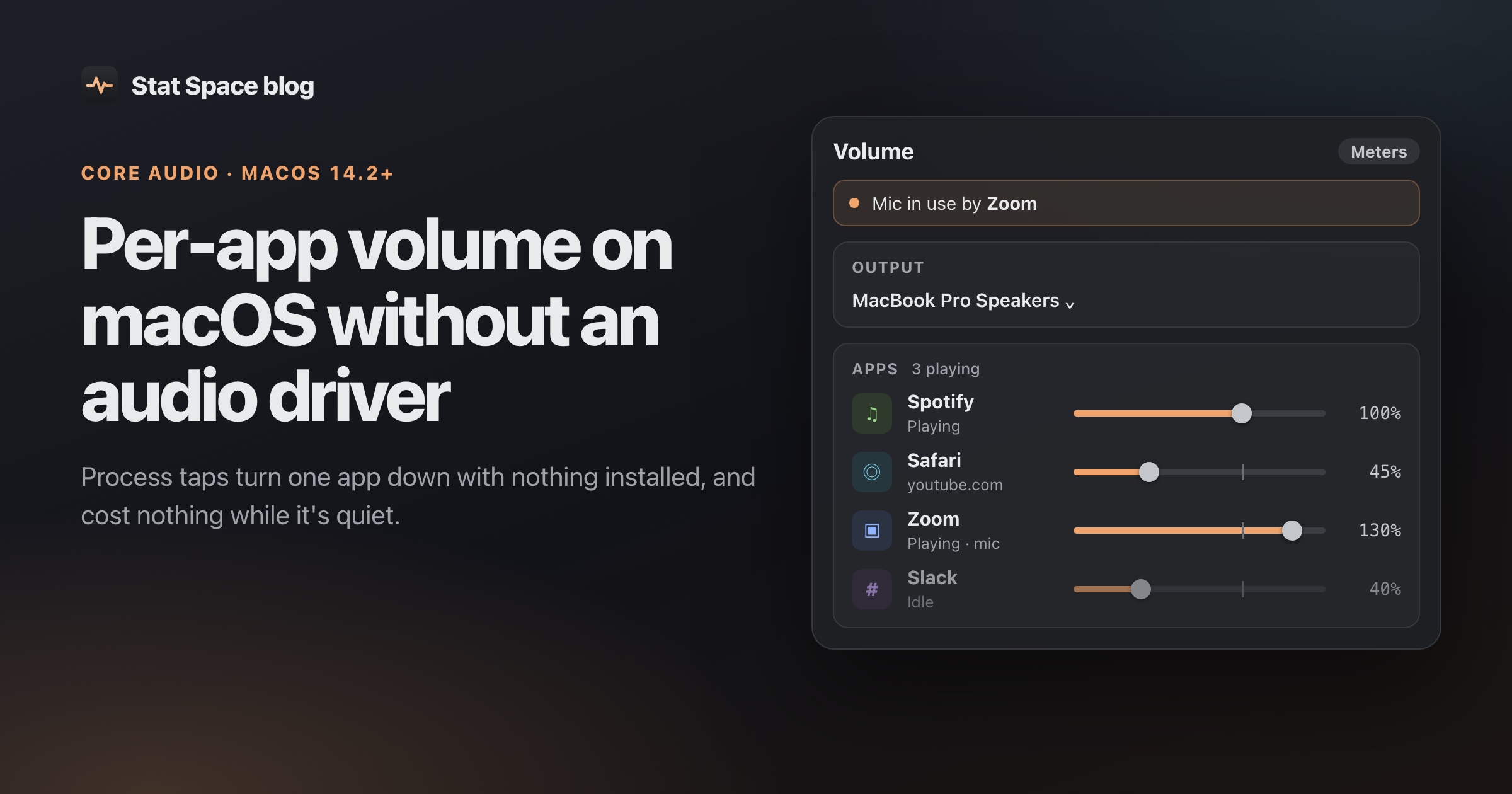
macOS still ships with exactly one volume slider. If Slack’s notification ping is louder than the call you’re on, your options are to turn everything down or go dig for a setting inside Slack.
For years, fixing that meant installing a virtual audio device that all of your sound flows through. While building Stat Space, a menu bar system monitor for Apple Silicon, I wanted a volume mixer that installs nothing and costs nothing when you’re not using it. Since macOS 14.2 that’s possible with public API: Core Audio process taps. This post is how they work, how I used them, and the parts the docs don’t mention.
Who’s playing, with no permission at all
Before touching anyone’s audio, you need to know which apps are using it. Core Audio exposes every client process as an audio object. kAudioHardwarePropertyProcessObjectList on the system object gives you the list, and each process object has a PID, a bundle id and whether it is doing output or input IO right now:
for obj in ids(system, kAudioHardwarePropertyProcessObjectList) {
    let pid: pid_t = get(obj, kAudioProcessPropertyPID) ?? -1
    let out: UInt32 = get(obj, kAudioProcessPropertyIsRunningOutput) ?? 0
    let inp: UInt32 = get(obj, kAudioProcessPropertyIsRunningInput) ?? 0
    let bundle = string(obj, kAudioProcessPropertyBundleID)
    // ...
}
This needs no permission, which is also how a “mic in use by Zoom” banner can work without asking for the microphone. (If you only need the basics, I wrote up the ways to set per-app volume on a Mac separately.)
The raw list isn’t what a person wants to see, though. Chrome plays audio from Google Chrome Helper.app nested inside Google Chrome.app, Electron apps do the same, and Safari’s audio comes from WebKit’s GPU process, which lives outside any app bundle. So each process is grouped into its owner: the outermost .app bundle on its executable path wins, and for system-path processes like WebKit’s XPC services, the bundle of the responsible process. A command-line tool’s responsible process is the terminal that started it, so afplay run from Terminal stays afplay instead of turning into “Terminal”.
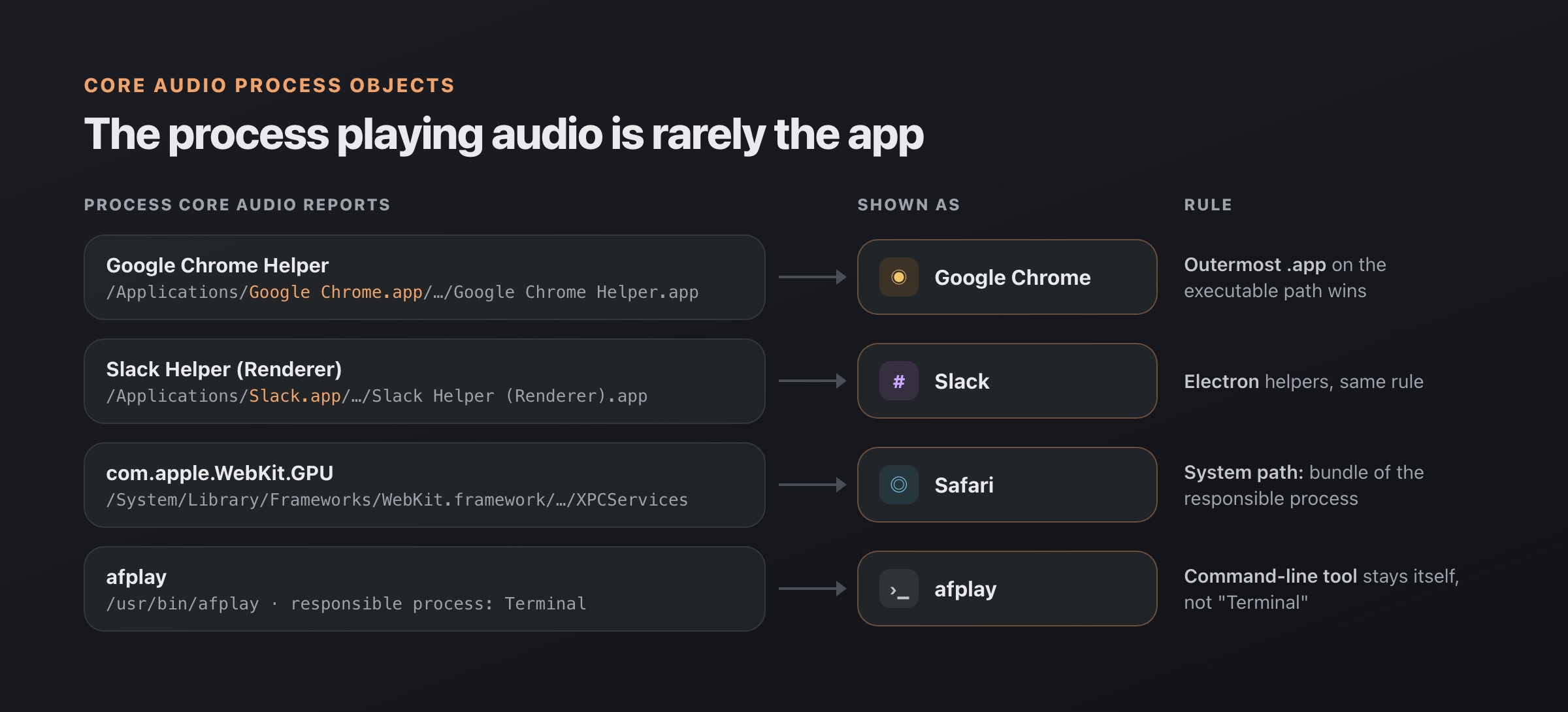
Helpers, Electron renderers and WebKit’s GPU process are grouped into the app that owns them.
Taps and aggregate devices
A process tap is a Core Audio object that captures the output of one or more processes. You describe it with a CATapDescription and create it with AudioHardwareCreateProcessTap, which Apple introduced in macOS 14.2. A tap alone doesn’t produce any samples you can read. Apple’s sample code shows the pattern: put the tap into an aggregate device and the tap shows up as an input stream, “just like a microphone”.
That gives you the shape of a per-app volume control:
- Create a tap over the app’s process objects, with
muteBehavior = .mutedWhenTapped. While the tap is being read, the app’s own output is silenced. - Create a private aggregate device whose main sub-device is the real output (your speakers or headphones) and whose tap list holds the new tap.
- Run an IOProc on the aggregate device that reads the tapped samples, multiplies them by the gain, and writes them to the output.
let desc = CATapDescription(stereoMixdownOfProcesses: processObjects)
desc.uuid = UUID()
desc.isPrivate = true
desc.muteBehavior = .mutedWhenTapped
var tapID = AudioObjectID(0)
AudioHardwareCreateProcessTap(desc, &tapID)

let agg: [String: Any] = [
    kAudioAggregateDeviceMainSubDeviceKey: outputUID,
    kAudioAggregateDeviceIsPrivateKey: true,
    kAudioAggregateDeviceTapAutoStartKey: true,
    kAudioAggregateDeviceSubDeviceListKey: [[kAudioSubDeviceUIDKey: outputUID]],
    kAudioAggregateDeviceTapListKey: [[kAudioSubTapDriftCompensationKey: true,
                                       kAudioSubTapUIDKey: desc.uuid.uuidString]],
]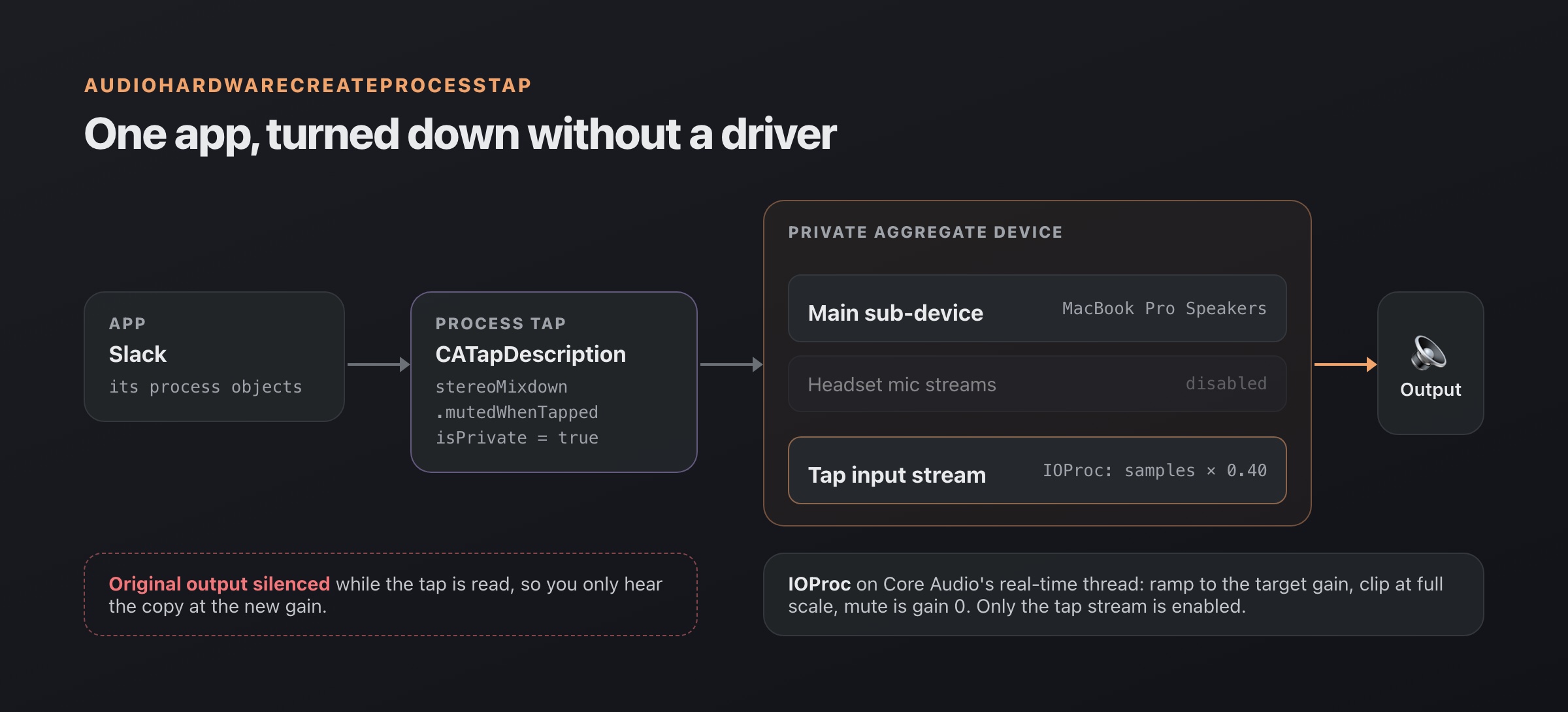
The tap silences the app’s original output, and the aggregate device’s IOProc replays it at the chosen gain.
Mute is just a gain of zero. Routing an app to a different output is the same tap with a different main sub-device: the app is silenced on the default output and replayed on, say, the external speakers while your call stays on headphones. Boost above 100% works too, up to 150% in Stat Space, with samples clipped at full scale.
The IOProc is the hot path
The IOProc runs on Core Audio’s real-time thread, so the usual rules apply: no allocation, no locks, no Swift runtime surprises. The main actor and the IOProc share three floats in a manually allocated buffer: the target gain, the peak level since the UI last read it, and the gain currently applied. Each buffer ramps from the applied gain to the target, so dragging a slider doesn’t click.
A few things I only found by testing:
- The aggregate’s inputs include the sub-device’s. If your output is a headset, the aggregate also exposes its microphone streams, followed by the tap. Leave them enabled and tapping opens the mic, and Bluetooth headphones drop into their low-quality headset mode. Setting
kAudioDevicePropertyIOProcStreamUsageto enable only the last input stream (the tap) avoids both. - Buffer size matters for CPU. Asking for a 1,024-frame buffer instead of the device’s default of 512 halves the IO wakeups and measured about 20% less CPU per tap. That’s around 21 ms at 48 kHz, which nobody notices for playback.
- Mono outputs exist. If the output has a single channel, write the average of left and right instead of only the left.
Permission and the purple dot
Taps need the “System Audio Recording” permission (TCC service kTCCServiceAudioCapture) and an NSAudioCaptureUsageDescription string in Info.plist. Apple’s docs say the system prompts the first time you start recording from an aggregate device that contains a tap. Without the permission, the tap delivers silence. With a muting tap, that means the app goes quiet, so a muting tap must never be created before access is granted.
There’s no public API to check that permission ahead of time. Stat Space dlopens the private TCC framework for TCCAccessPreflight and TCCAccessRequest. If that fails to load, it falls back to letting the first tap trigger the system prompt. One trap: calling either function without the usage string in Info.plist aborts the process.
I didn’t want the Volume tab to throw a scary system dialog the moment you open it. So opening the tab asks for nothing. The first time you move a slider, the tab shows a card explaining why the permission is needed, and only its Allow button raises the prompt.
Then there’s the purple dot. macOS shows its audio-recording indicator in the menu bar while any tap runs. It’s correct, since a tap is technically recording, but it alarms people. That’s another reason to run taps only when they’re doing something.
Keeping the cost near zero
Stat Space has an idle budget of under 0.3% CPU and 25 MB at 1-second sampling with the popover closed, so the mixer had to fit inside it. The rule I landed on: a tap exists only for an app whose volume isn’t 100%, is muted or rerouted, and only while it plays.
Concretely:
| State | What runs |
|---|---|
| Tab closed, no app changed | Nothing |
| Tab open | Core Audio listeners, a 2 Hz UI refresh |
| Some app changed, popover closed | The same listeners, no refresh loop |
| That app is playing | One tap + aggregate device for it |
| It stopped playing | The tap stays 20 s, then is torn down |
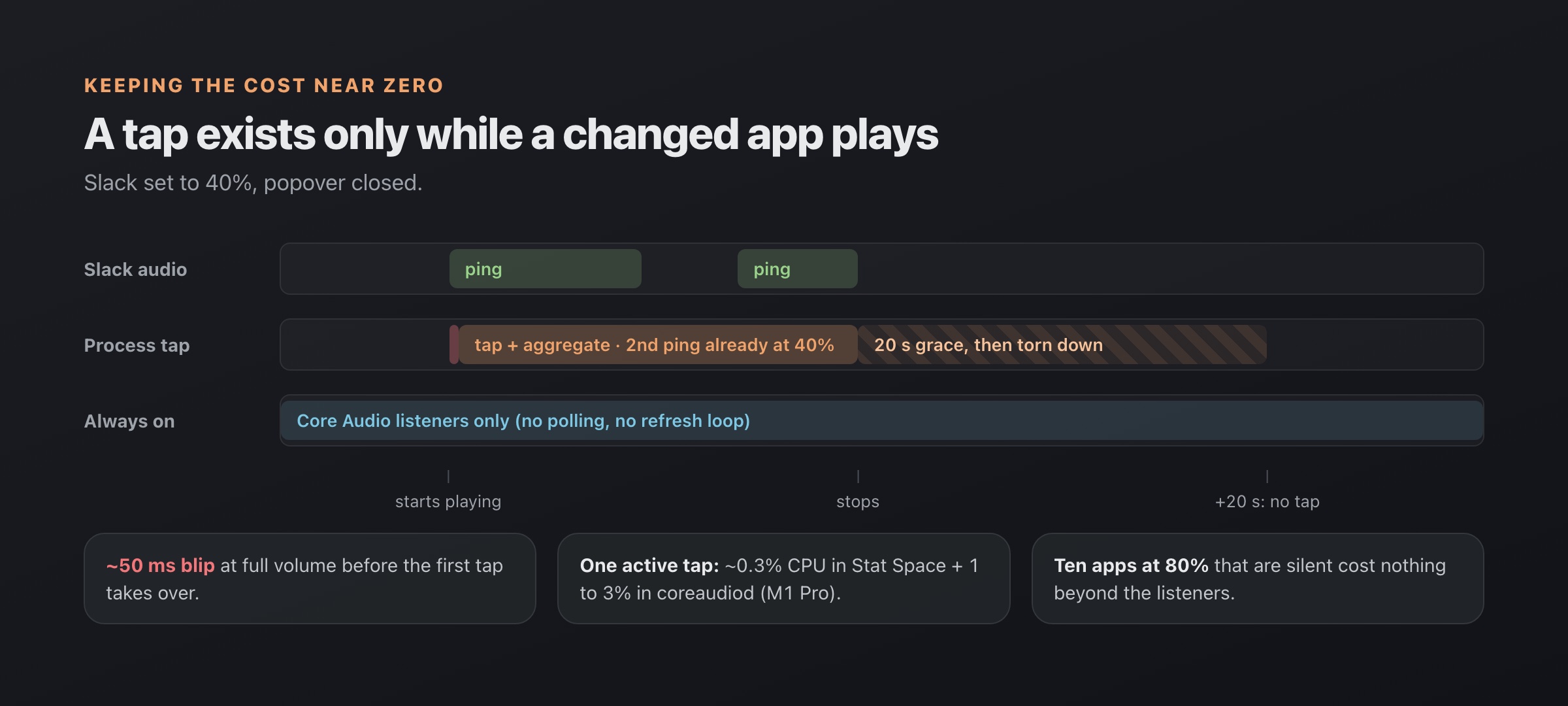
A tap lives only while a changed app plays, plus a 20-second grace period.
The 20-second grace exists because apps pause and resume constantly: videos, a notification sound every few seconds. Tearing the tap down on every gap would make each resume start at full volume. Keeping it forever would leave the IO cycle and its CPU running while the app is silent.
Measured on an M1 Pro, one active tap costs about 0.3% CPU in Stat Space plus 1 to 3% in coreaudiod. That’s why “only while it plays” matters. Ten apps sitting at 80% that aren’t making noise cost nothing beyond a few Core Audio listeners.
The honest trade-off: there’s no driver in the signal path, so when an app at 30% starts a sound, it plays at full volume for the roughly 50 ms before the tap takes over. The grace period hides this for apps that play in bursts, but the first sound after a long silence can blip.
Remembering volumes, and setting them before an app plays
Settings live in a small store keyed by the owner’s bundle id (or proc:<name> for a command-line tool). Only non-default entries are kept, so an empty store means there’s no reason for anything to run in the background. At launch, remembered volumes resume only if access was already granted. Launch never prompts.
Early versions only gave an app a slider while it was playing, which is useless when the thing you want to tame is the next Slack ping. Now the list shows every app with a Core Audio process object, playing or not, plus every saved setting even if the app isn’t running. Idle rows are dimmed but work. Moving one only saves the setting, and the tap is still created when the app starts playing, so the cost model doesn’t change. The limit: an app that has never opened audio has no process object yet, so it can’t be listed until it does.
The gotcha: listeners that never fire
Core Audio lets you add a property listener on each process object. The obvious choice is kAudioProcessPropertyIsRunningOutput, so you hear about an app starting output. I did exactly that, and for a while the Playing state in the tab only updated when the process list itself changed.
It turned out that on macOS 26, listeners on kAudioProcessPropertyIsRunningOutput and kAudioProcessPropertyIsRunningInput never fire. Only kAudioProcessPropertyIsRunning notifies. The fix is to listen to IsRunning and then read IsRunningOutput when it fires:
for obj in processObjects {
    // IsRunningOutput / IsRunningInput don't notify; IsRunning does.
    listeners.add(obj, kAudioProcessPropertyIsRunning)
}
// in the callback: re-read kAudioProcessPropertyIsRunningOutput per object
Callbacks also arrive in bursts (one app starting playback flips several helper processes), so they’re coalesced with a 50 ms delay before refreshing.
How this compares to the driver approach
Driver-based mixers came first because nothing else was possible. They are not wrong, they’re just a different trade.
Background Music (free, open source) installs a virtual audio device and sets itself as your default output, so all system audio passes through it. The project still labels itself alpha, and its README notes that macOS counts its virtual input device as a microphone. In exchange, it works on macOS versions far older than 14.2.
SoundSource from Rogue Amoeba used ACE, their audio capture engine, for years. ACE wasn’t actually a kernel extension, but on Apple Silicon Macs it still needed Reduced Security mode and the kernel-extension checkbox to load. As of late 2024 Rogue Amoeba replaced it with a new backend, ARK, installed as a plug-in with just an administrator password, no security policy changes and no restart. Current SoundSource needs macOS 14.5 or later. It does far more than volume: per-app EQ, effects and Audio Unit hosting.
The tap approach wins on install and idle cost: nothing to install, nothing in the signal path for apps you haven’t touched. It loses on reach (macOS 14.2+), on that first-50-ms blip, and on the purple dot, which a driver doesn’t trigger. If you need per-app EQ, a dedicated audio tool is still the better choice.
Wrapping up
Process taps turned a feature that used to require a system-level install into a few hundred lines of Core Audio. Most of the work wasn’t the audio. It was deciding when not to run a tap.
The mixer is free in Stat Space, alongside the rest of the system monitor. If you’d like to see it, or the volume mixer page for details, it’s at statspace.app. There’s also a comparison of per-app volume apps if you want the other options side by side.
Questions
Do I need an audio driver for per-app volume on macOS?
Not on macOS 14.2 or later. Core Audio process taps let an app capture another app's output, mute the original and play it back at a different level, with no virtual audio device installed.
Why does the purple dot appear when I change an app's volume?
A process tap needs System Audio Recording permission, and macOS shows its purple recording indicator while any tap is running. The audio is processed locally and never stored or sent anywhere.
Know what your Mac is doing, without adding to it.
Free, no account. Pro is $9.99 once for the first 100 buyers.